

Internal linking is one of the simplest ways to improve your website’s SEO, but manually finding relevant links can quickly become time-consuming.
SILA makes this process much easier by generating internal link suggestions directly inside your WordPress dashboard while keeping you in complete control of every link that gets inserted.
In this guide, we’ll show you how to use SILA from installation to inserting your first internal links.
What is SILA?
SILA (Smart Internal Linking Assistant) is a lightweight WordPress internal linking plugin designed to help website owners discover relevant internal linking opportunities across posts, pages, and WooCommerce products.
Unlike fully automated tools, SILA never inserts links without your approval.
You review every suggestion before making changes to your content.
Step 1 — Install SILA
Download the latest version of SILA.
Inside your WordPress dashboard, go to:
Plugins → Add New → Upload Plugin
Upload the ZIP file, click Install Now, and activate the plugin.
After activation, you’ll find a new Link Assistant menu in your dashboard.
Step 2 — Generate Internal Link Suggestions
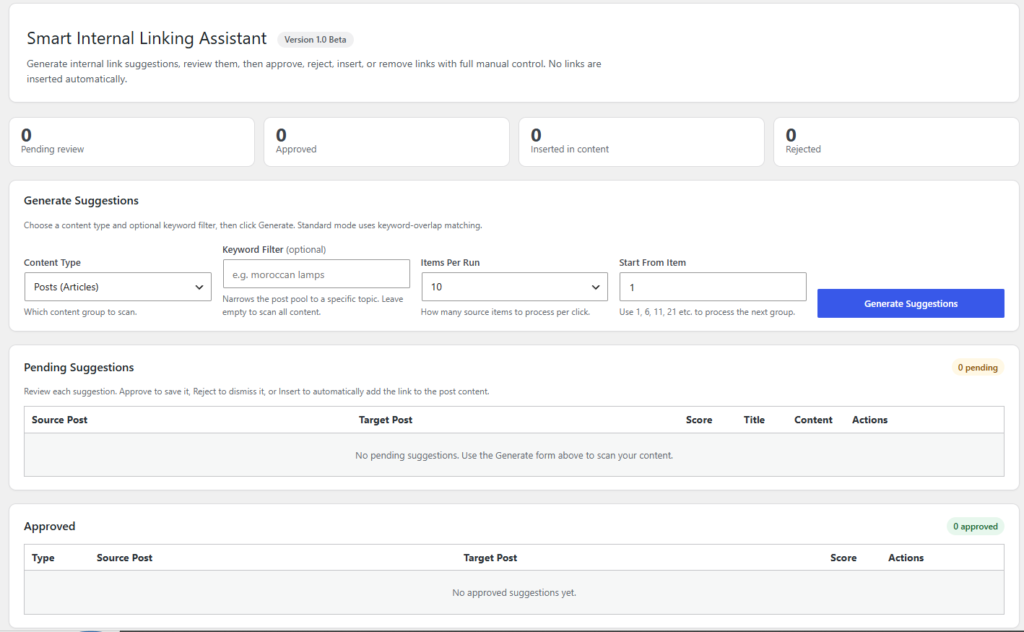
Open Link Assistant.
At the top of the dashboard, choose:
- Content Type
- Items Per Run
- Starting Position
- Optional Search Keyword
Click Generate Suggestions.
SILA will scan your content and generate relevant internal link suggestions based on title and content similarity.
Step 3 — Review Your Suggestions
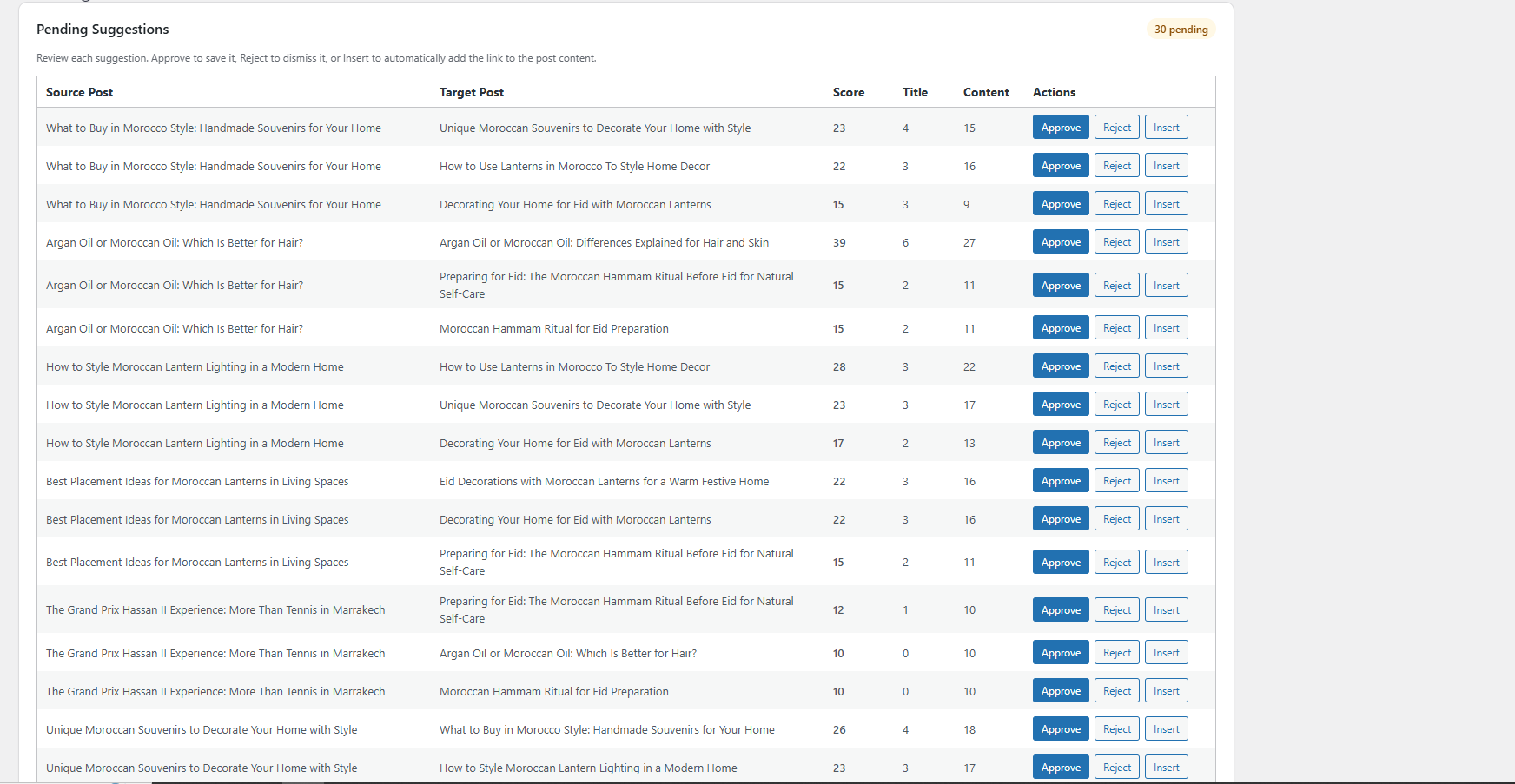
Every suggestion includes helpful information, including:
- Source page
- Target page
- Similarity score
- Title score
- Content score
Use these scores to quickly identify the most relevant linking opportunities.
Step 4 — Approve or Reject Suggestions
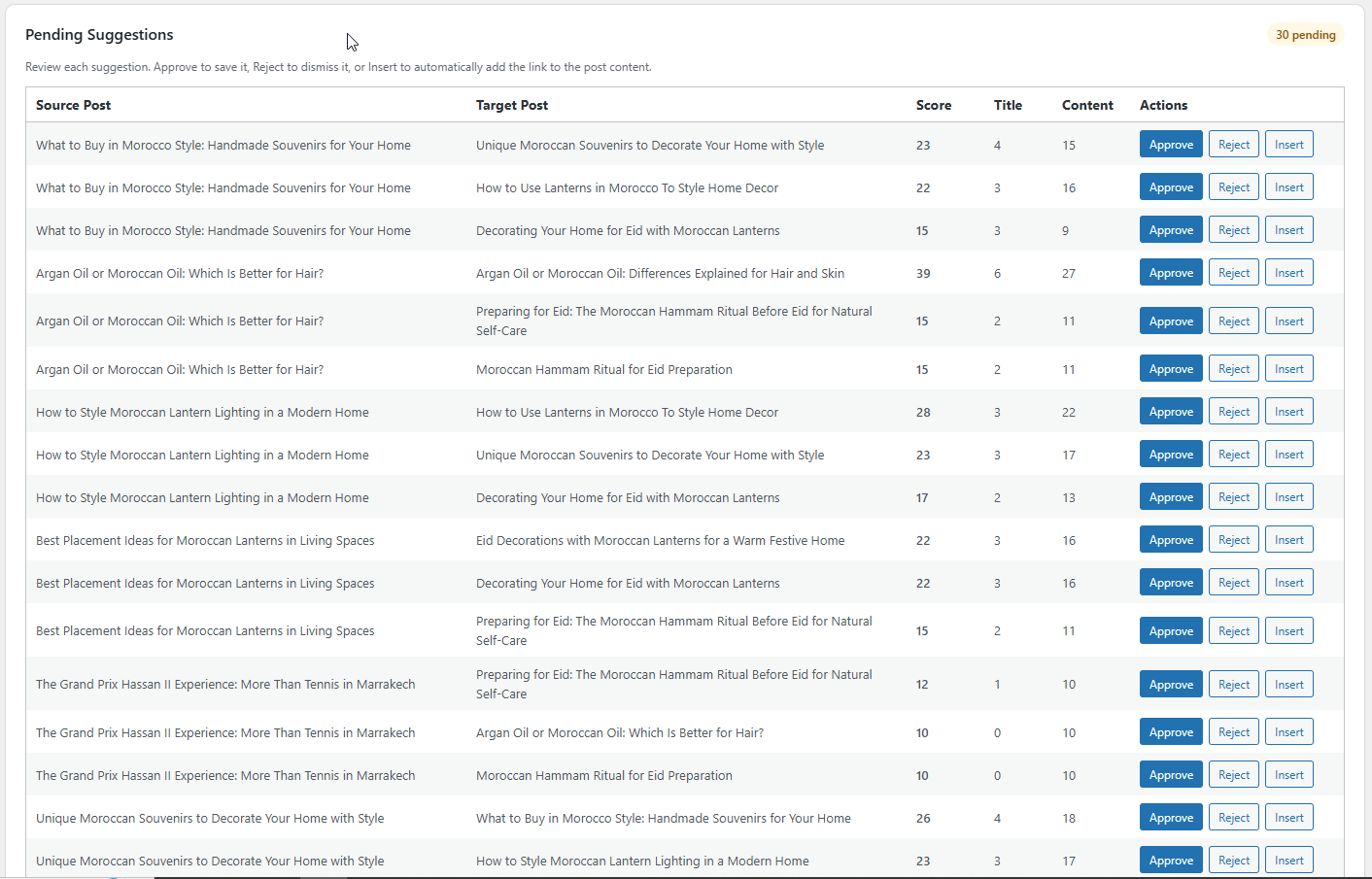
Not every suggestion needs to become an internal link.
Review each suggestion carefully.
If it makes sense:
✅ Approve it.
If it isn’t relevant:
❌ Reject it.
This keeps your internal linking strategy clean and organised.
(Add Screenshot)
Step 5 — Insert Internal Links
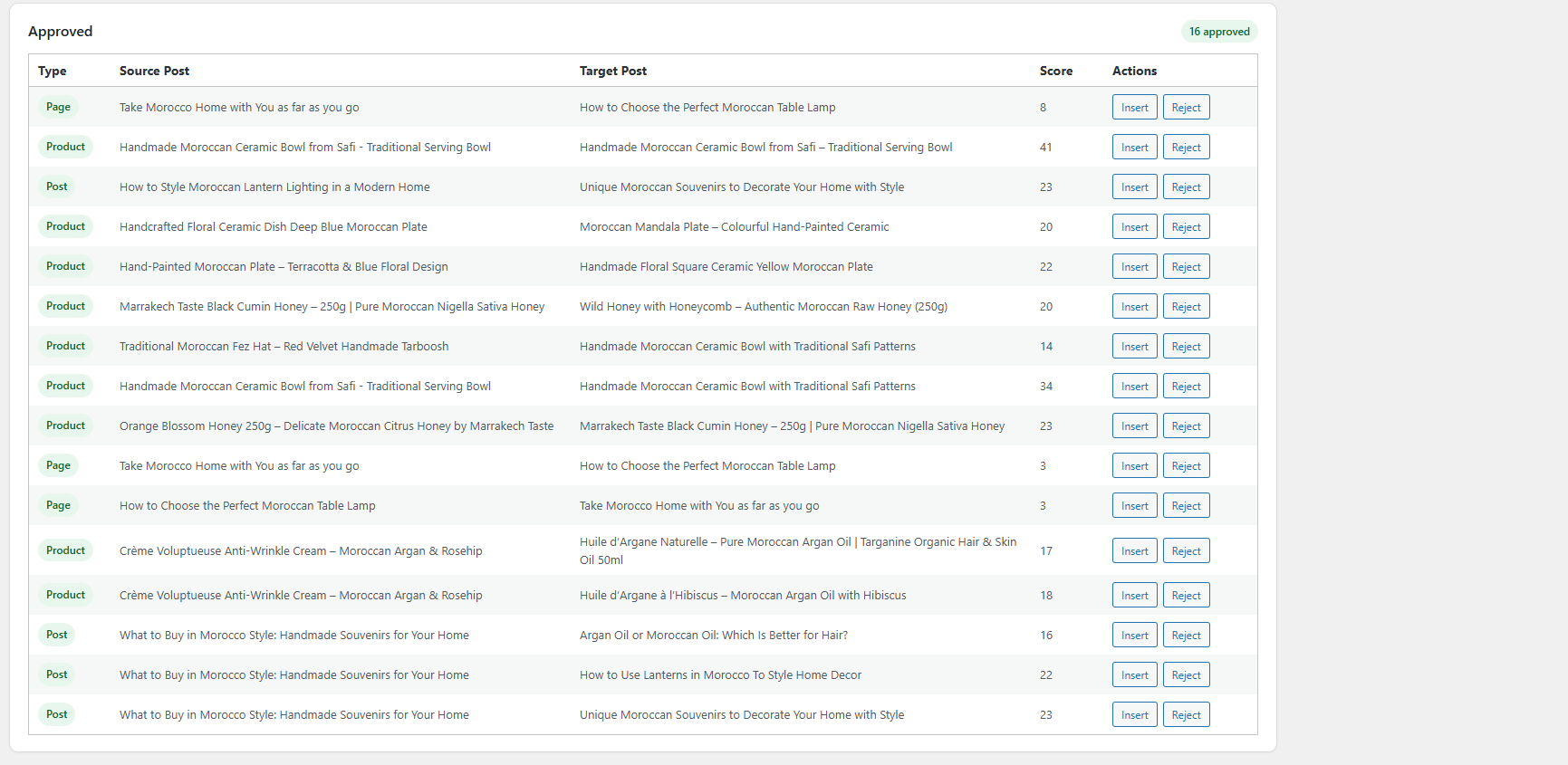
Once you’ve approved a suggestion, simply click Insert.
SILA will safely search for the recommended anchor text inside your content.
If a suitable location exists, the internal link is added automatically.
If not, SILA will notify you instead of forcing an unnatural link.
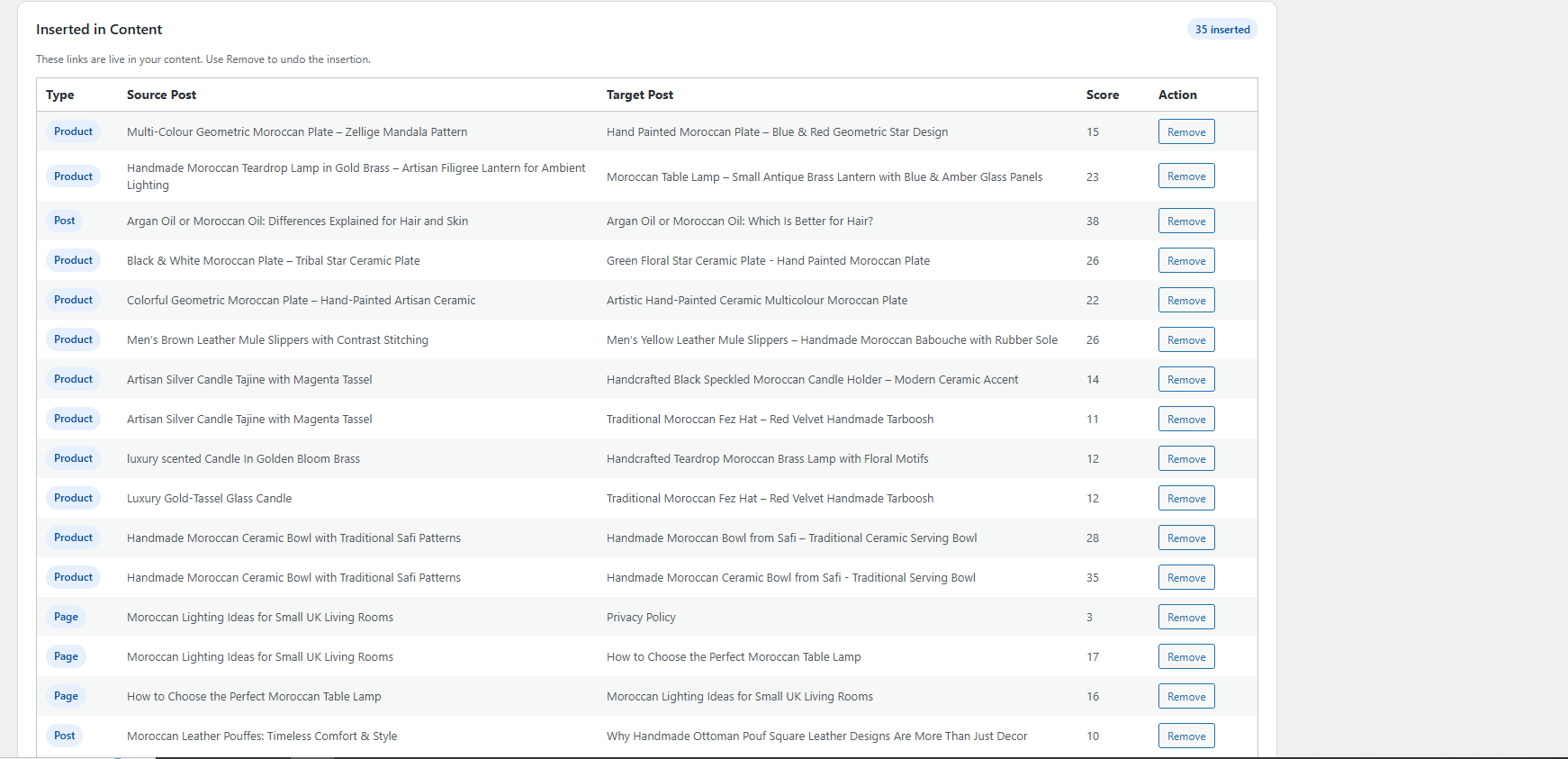
Step 6 — Remove Inserted Links
Need to undo a change?
Open the Inserted tab and click Remove.
SILA removes only the link it previously inserted while leaving the surrounding content untouched.
Using the Editor Metabox
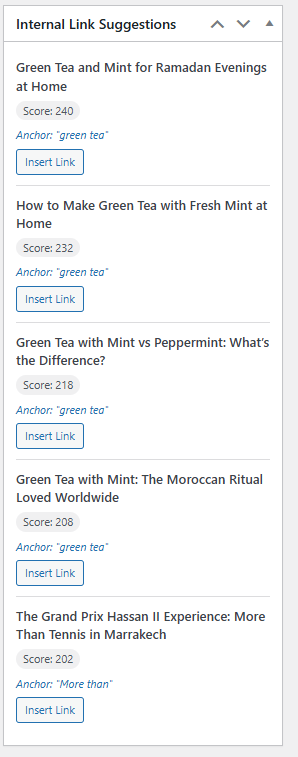
SILA also works directly inside the WordPress editor.
While editing a post, page, or WooCommerce product, you’ll see the Internal Link Suggestions metabox.
This allows you to review and insert suggestions without leaving the editor.
Why Use SILA Instead of Manual Internal Linking?
Manual internal linking works—but it becomes difficult as your website grows.
SILA helps you:
- Save time
- Discover linking opportunities
- Keep full manual control
- Improve website navigation
- Build a stronger internal linking strategy
- Support your long-term SEO efforts
It’s designed to simplify the process without taking control away from you.
Tips for Better Internal Linking
To get the best results with SILA:
- Prioritise high-relevance suggestions.
- Only insert links that add value for readers.
- Avoid adding too many links to a single page.
- Review suggestions before inserting them.
- Keep your content naturally connected.
Remember, quality always beats quantity.
Frequently Asked Questions
Does SILA insert links automatically?
No. Every suggestion is reviewed before insertion.
Does SILA work with WooCommerce?
Yes. SILA supports posts, pages, and WooCommerce products.
Can I remove inserted links later?
Absolutely. Every inserted link can be removed at any time.
Is SILA beginner-friendly?
Yes. SILA is designed to be simple enough for beginners while still offering the control experienced SEO professionals expect.
Final Thoughts
Building a strong internal linking strategy doesn’t have to be complicated.
SILA helps you discover relevant internal link suggestions, organise them, and insert them when it makes sense—all while keeping you in full control of your content.
Whether you manage a personal blog, a business website, or a WooCommerce store, SILA provides a simple and practical way to improve your internal linking workflow and strengthen your website’s SEO over time.