
SILA Documentation
Everything you need to install, configure, and use SILA to improve your WordPress internal linking strategy.
Introduction
Welcome to the official documentation for SILA — Smart Internal Linking Assistant.
SILA is a lightweight WordPress internal linking plugin that helps you discover relevant internal link opportunities across your posts, pages, and WooCommerce products.
Instead of inserting links automatically, SILA gives you full control by allowing you to review every suggestion before making changes to your content.
Getting Started
SILA is designed to make internal linking faster without removing your control.
You can generate suggestions, review them, approve useful ones, reject weak ones, insert links, and remove inserted links whenever needed.
Requirements
- WordPress 6.0 or newer
- PHP 8.0 or newer recommended
- MySQL 5.7+ or MariaDB equivalent
- WooCommerce is optional
Installation
- Download the latest SILA plugin ZIP file.
- Go to Plugins → Add New → Upload Plugin.
- Upload the ZIP file.
- Click Install Now.
- Activate the plugin.
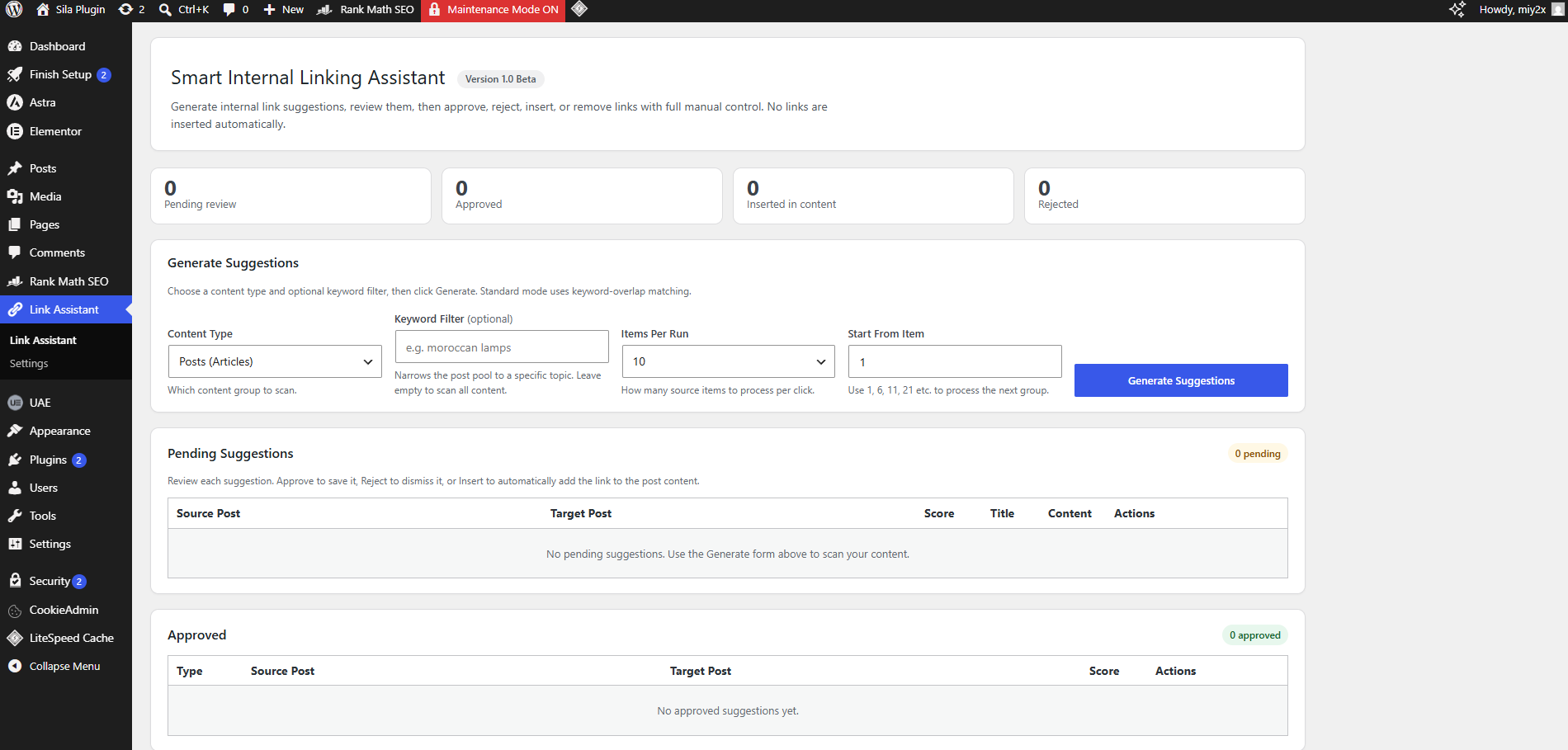
After activation, you will see a new Link Assistant menu inside your WordPress dashboard.
Dashboard Overview
The Dashboard is where your internal linking workflow begins.
- Generate internal link suggestions
- Review pending suggestions
- Manage approved suggestions
- View inserted links
- Review rejected suggestions
Generate Suggestions
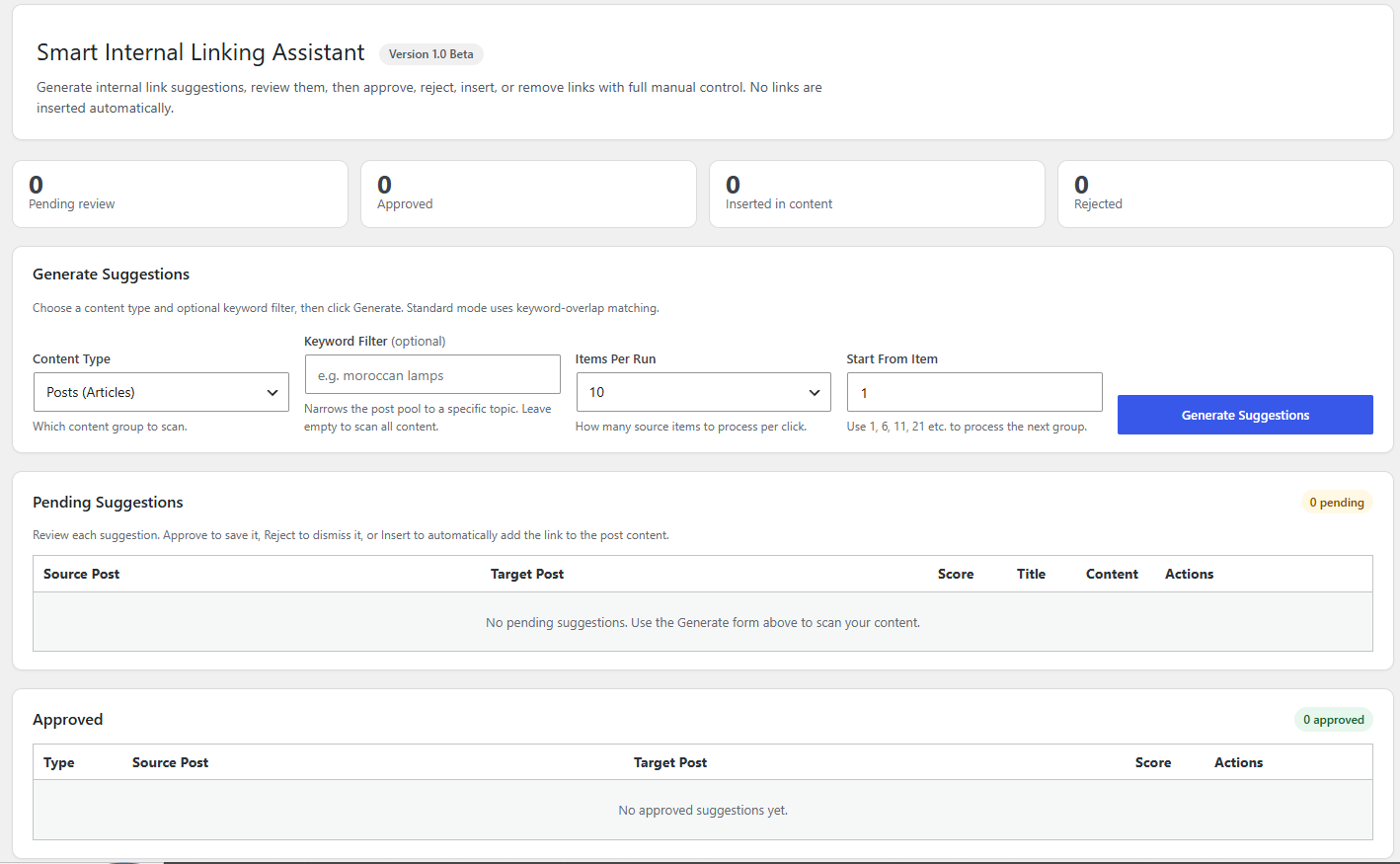
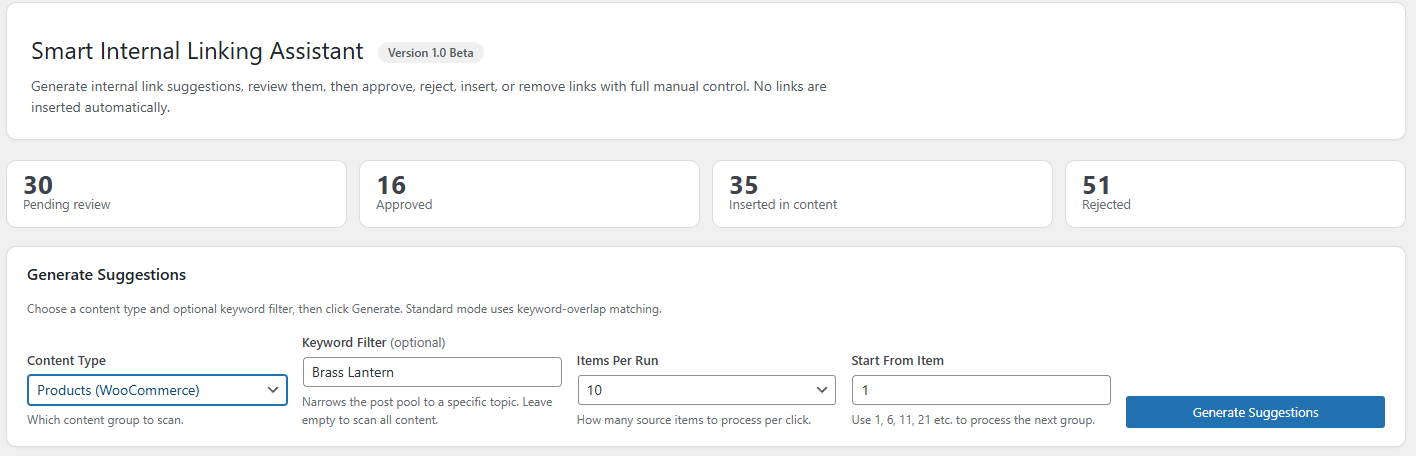
The Generate Suggestions section scans your website for internal linking opportunities.
You can choose to scan posts, pages, or WooCommerce products. You can also use a keyword filter, choose batch size, and select where the scan starts.
Understanding the Scores
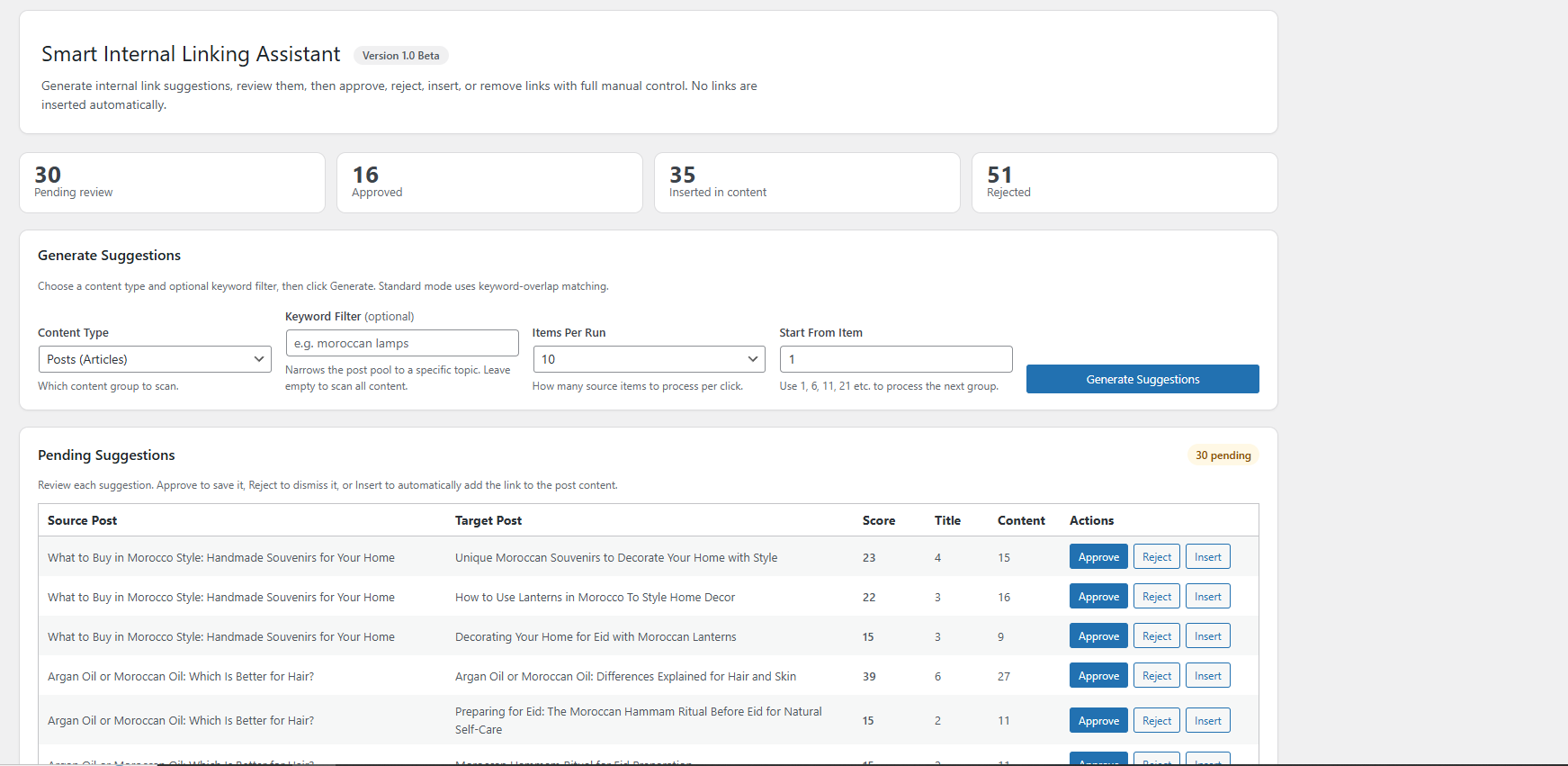
Overall Score
The combined relevance score. Higher scores usually mean stronger internal linking opportunities.
Title Score
Measures how closely the source and target titles relate.
Content Score
Measures content and keyword similarity between the source and target.
Pending Suggestions
New suggestions appear inside the Pending table. Each row shows the source page, target page, score, title score, content score, and available actions.
- Approve saves the suggestion for later.
- Reject dismisses the suggestion.
- Insert attempts to add the link to the content.
Approved Suggestions
Approved suggestions are saved for later review. You can insert or reject them whenever you want.
This helps you organise good suggestions before making changes to your content.
Inserting Links
When you click Insert, SILA searches for a suitable anchor text inside the source content.
If a safe location is found, the internal link is inserted and the suggestion moves to the Inserted section.
Inserted Links
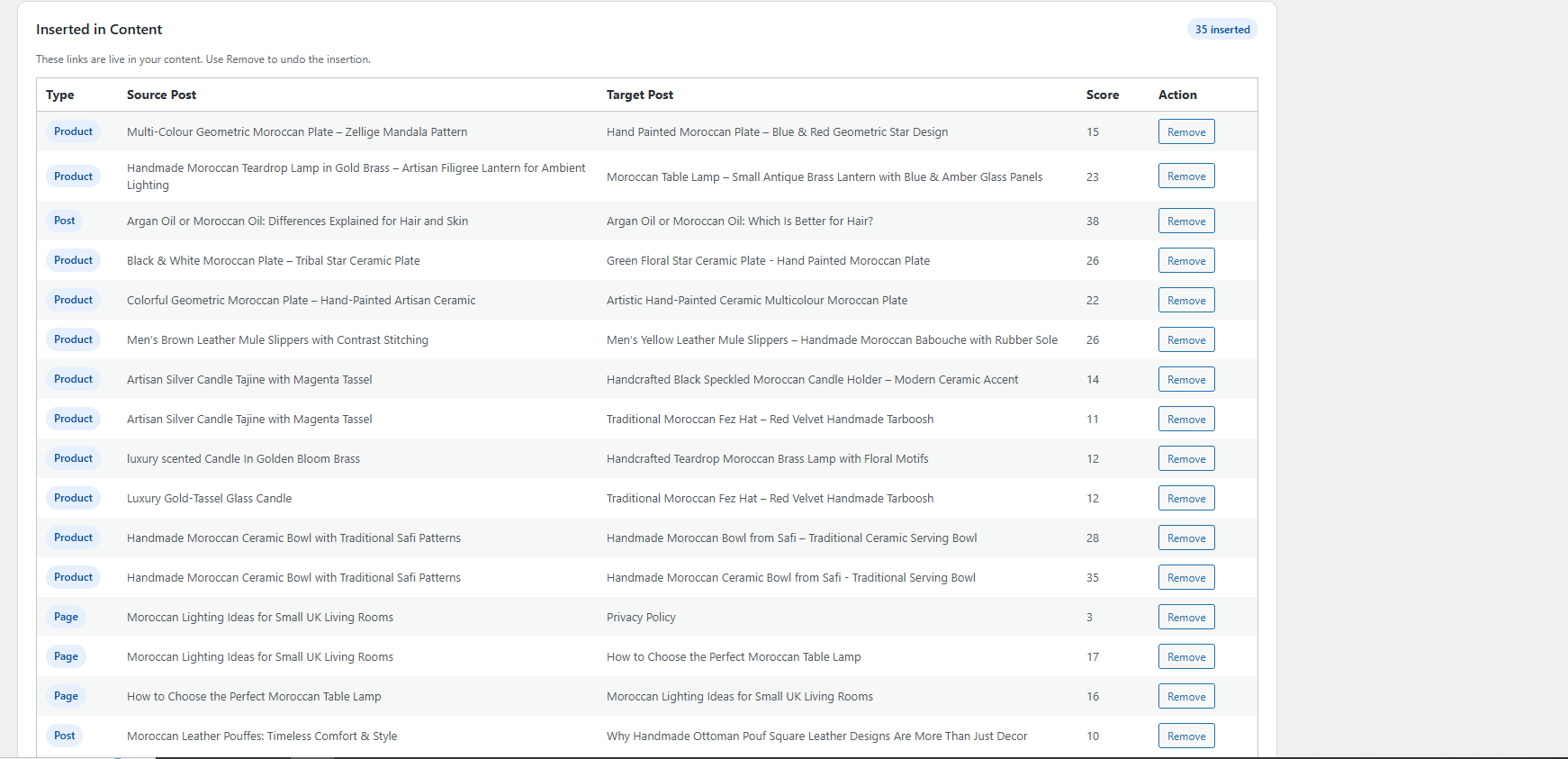
The Inserted section keeps track of links added by SILA.
You can review inserted links and remove them whenever needed.
Removing Links
To remove a link, open the Inserted section and click Remove.
SILA removes the link it previously inserted while keeping the surrounding content untouched.
Editor Metabox
SILA also works directly inside the WordPress editor.
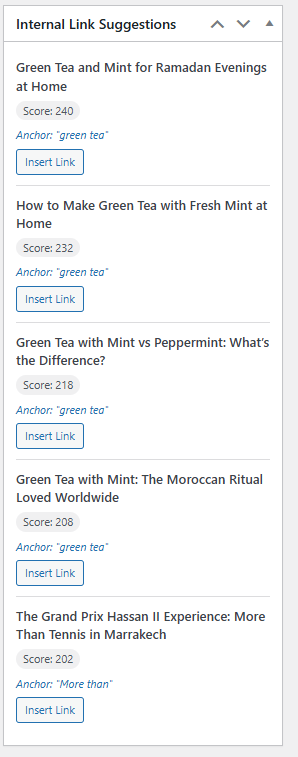
When editing a post, page, or WooCommerce product, you can view internal link suggestions inside the Internal Link Suggestions metabox.
This allows you to insert links while working on your content without going back to the dashboard.
Settings
The Settings page provides basic plugin information including the current version and available features.
Additional settings may be added in future versions.
Best Practices
- Only insert links that are genuinely relevant.
- Avoid forcing links into unrelated content.
- Use descriptive anchor text when possible.
- Focus on helping readers discover useful content.
- Review suggestions before inserting them.
Frequently Asked Questions
Does SILA insert links automatically?
No. Every suggestion must be reviewed before insertion.
Does SILA work with WooCommerce?
Yes. SILA supports posts, pages, and WooCommerce products.
Can I remove inserted links?
Yes. Every inserted link can be removed at any time.
Does SILA slow down my website?
No. SILA only performs scans when you request them.
Can I scan only products?
Yes. Choose Products from the Content Type dropdown before generating suggestions.
Why did SILA not insert a link?
This usually means no suitable anchor text was found inside the content. SILA never forces unnatural links.
Troubleshooting
No suggestions found
Make sure your website contains enough published content and that your selected content type has available items.
Link could not be inserted
The suggested anchor text may not exist inside the source content. Try another suggestion.
Suggestions seem unrelated
Lower-scoring suggestions may be less relevant. Focus on higher-score recommendations first.
Changelog
Version 1.0.0
- Initial release
- Internal link suggestions
- Manual approval workflow
- Similarity scoring
- Posts support
- Pages support
- WooCommerce products support
- Editor metabox
- Link removal
- Lightweight architecture
Ready to Build Better Internal Links?
Use SILA to discover internal link opportunities, review suggestions, and improve your WordPress SEO workflow.
Download SILA Free